How To Data Recovery Files From Damaged External Hard Drive?

External hard drives are crucial for storing important files, but sometimes they can become damaged or corrupted. Whether it’s due to physical damage, sudden power loss, or software issues, recovering your data from a damaged external hard drive can seem like a daunting task. However, there are several methods and tools that can help you restore lost data without further damage.
Here’s how to recover files from a damaged external hard drive:
Step 1: Verify the Cause of the Problem
Before you dive into data recovery, you need to determine whether the issue is with the external hard drive itself or something else, such as the USB port or the cable.
-
Test Different Ports or Cables
Disconnect your external hard drive and try plugging it into another USB port or use a different cable. This helps rule out any issues with the connection. -
Test on Another Computer
If switching ports and cables doesn’t help, connect the external hard drive to a different computer. If the drive works on another PC, the issue may lie with your original computer’s USB drivers. -
Check for Sounds or Signs of Physical Damage
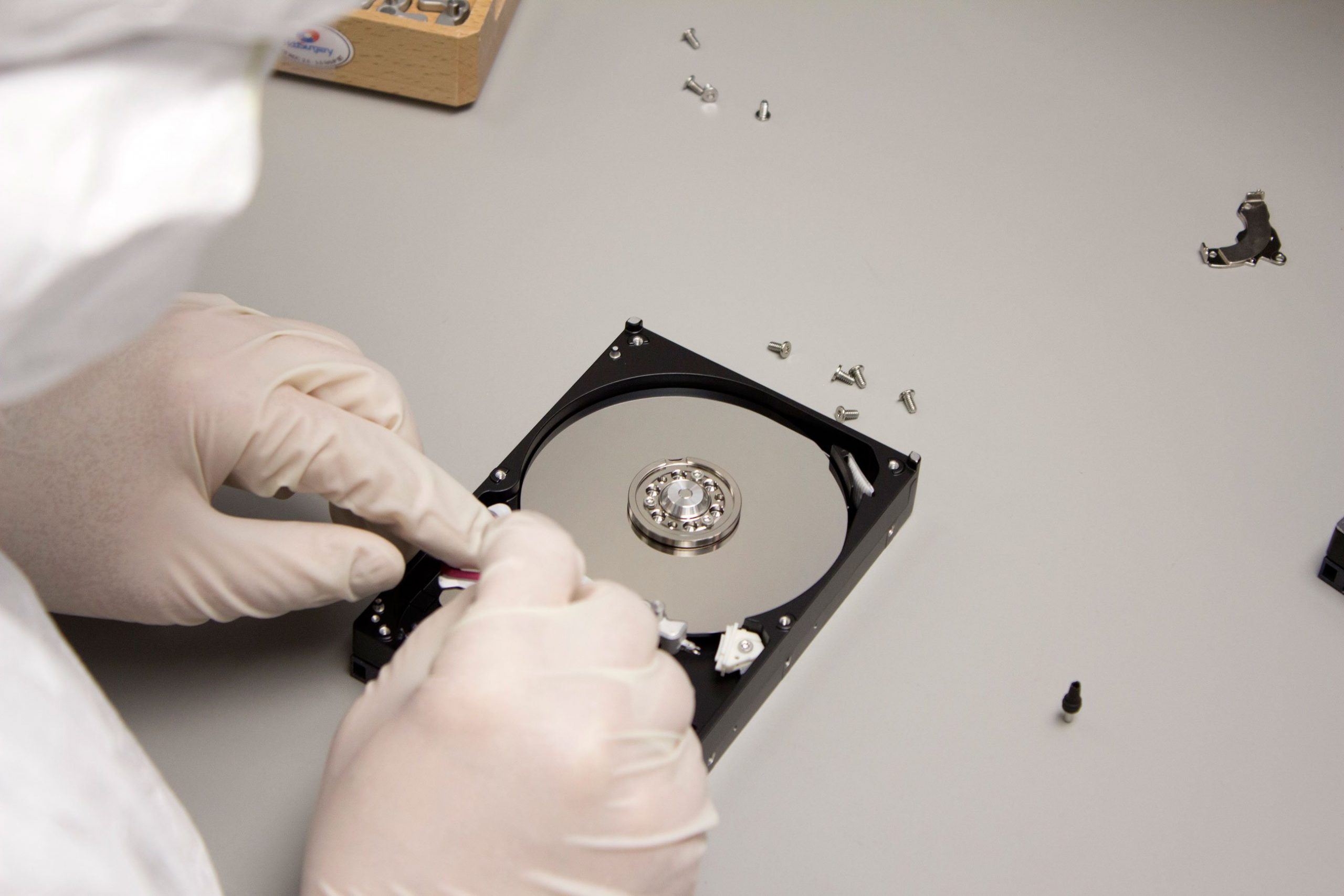
Listen for any unusual sounds coming from the external hard drive (such as clicking or grinding noises), which could indicate mechanical failure. If the drive makes strange noises, it’s best to stop using it and consult a professional data recovery service.
Step 2: Use Data Recovery Software
If your external hard drive is still not accessible or showing errors, using powerful data recovery software can help you retrieve lost files. One of the most reliable tools for this purpose is EaseUS Data Recovery Wizard, which is capable of recovering data from corrupted or damaged external hard drives.
How to Use EaseUS Data Recovery Wizard:
-
Download and Install the Software
-
Visit the EaseUS website and download the Data Recovery Wizard software.
-
Install it on your computer (preferably not on the drive you are trying to recover from to avoid overwriting data).
-
-
Connect the Damaged External Hard Drive
-
Plug your damaged external hard drive into your computer and ensure it is recognized by the system.
-
-
Launch the Data Recovery Software
-
Open EaseUS Data Recovery Wizard and select your external hard drive from the list of available drives.
-
-
Scan the External Hard Drive
-
Click the “Scan” button to begin scanning the external hard drive for lost or corrupted files.
-
The software will perform a quick scan to find any accessible files, followed by a deep scan to search for additional lost data.
-
-
Preview and Recover Files
-
Once the scan is complete, preview the recoverable files.
-
Select the files you wish to recover and click the “Recover” button to restore them to a safe location on your computer.
-
Step 3: Prevent Future Data Loss
To avoid future data loss, consider the following tips:
-
Backup Regularly
Always have a backup of your important files. Use cloud storage or a secondary external drive to store copies of important data. -
Safely Eject the External Hard Drive
Always eject your external hard drive properly before unplugging it to avoid file corruption. -
Monitor Drive Health
Periodically check the health of your external hard drive using software tools to detect any potential issues before they become critical.
Step 4: When to Seek Professional Help
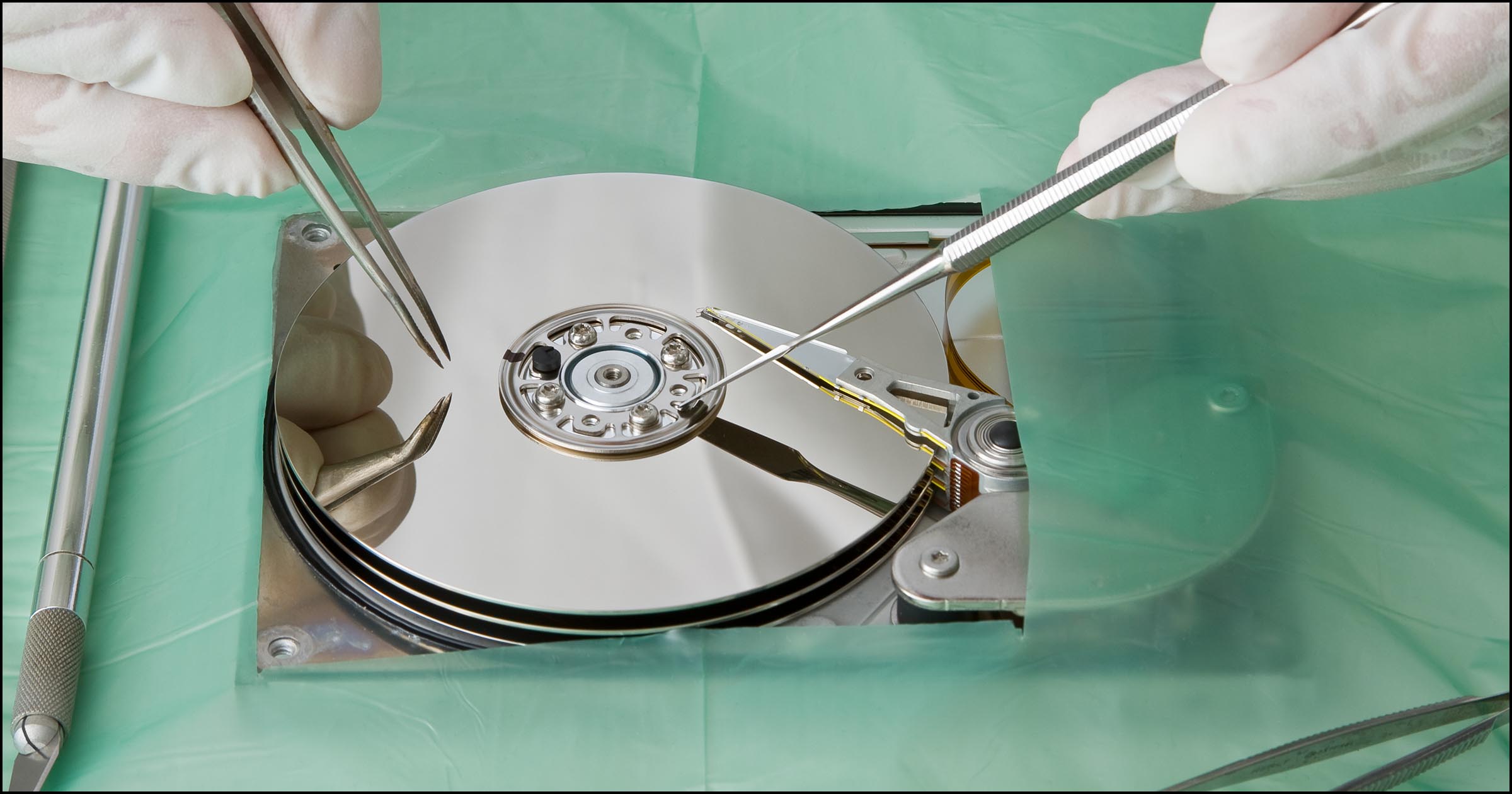
If the external hard drive is physically damaged, or if the data recovery software cannot retrieve the necessary files, it’s time to seek professional help. Data recovery experts have the tools and expertise to recover data from severely damaged drives, but this service can be expensive, depending on the extent of the damage.
Conclusion
While external hard drives can fail for a variety of reasons, using data recovery software like EaseUS Data Recovery Wizard gives you the best chance of retrieving your files. Remember, if the drive is physically damaged or if software recovery fails, seeking professional assistance is the next best step. Make sure to back up your data regularly to avoid the stress of dealing with data loss in the future.