Data Recovery Services From Dead SD Card With Safe Method

SD cards are one of the most popular storage solutions for mobile devices, cameras, and other portable electronics. With their large capacity, high performance, and reliability, they have become a go-to for storing important data such as photos, videos, and documents. However, like any other storage device, SD cards are not immune to failure. Whether caused by improper handling, corruption, or external attacks, data loss from a dead SD card is a real concern. The good news is that recovering your files is possible—if the right steps are followed.
Understanding the Causes of SD Card Failure
Before diving into recovery methods, it’s essential to understand the potential causes of SD card failure. These may include:
-
Corruption: This can happen when the SD card is removed while files are still being written or if the device experiences an unexpected shutdown.
-
Physical Damage: Dropping the SD card or exposing it to water, heat, or extreme conditions can lead to mechanical or electrical damage.
-
File System Errors: Sometimes, the SD card may show errors due to an unsupported file system or faulty partitioning.
-
Virus or Malware Attacks: Malicious software can corrupt files, rendering them inaccessible.
-
Accidental Deletion: Files might be mistakenly deleted or lost due to an accidental format.
Can Data Be Recovered from a Dead SD Card?
The ability to recover data from a dead SD card largely depends on the cause of the failure and how much damage the card has sustained. If the data hasn’t been overwritten, there’s a good chance you can recover it using proper methods. Here are some essential steps you can follow for a safe and effective recovery process:
Step 1: Stop Using the SD Card Immediately
Once you realize your SD card is malfunctioning or has stopped working, stop using it immediately. Continuing to use the SD card after data loss can overwrite the lost data with new information, making recovery more difficult or impossible.
Step 2: Check for Physical Issues
Before attempting any software-based recovery methods, check if the SD card shows any visible signs of damage, such as bent pins, physical cracks, or extreme wear. If you suspect physical damage but the card is still readable by your computer, try inserting it into a different device or card reader to ensure it’s not a connectivity issue.
Step 3: Use Data Recovery Software
If the SD card is not physically damaged, using data recovery software is one of the safest methods to recover lost files. These programs work by scanning the SD card for recoverable files and allowing you to retrieve them before they are overwritten. A popular and reliable tool is MiniTool Power Data Recovery, which is specifically designed for SD cards and other types of storage devices.
How to Use MiniTool Power Data Recovery:
-
Download and Install the Software:
-
Download MiniTool Power Data Recovery from the official website and install it on your computer. Ensure that you install it on a different drive from the one you are trying to recover data from to prevent overwriting the lost files.
-
-
Connect the Dead SD Card:
-
Insert the dead SD card into your computer via a card reader. Make sure your computer recognizes the card. If it doesn’t, try using another card reader or port.
-
-
Scan the SD Card:
-
Launch MiniTool Power Data Recovery and select the SD card from the list of available drives. Click the “Scan” button to start the scanning process. The software will search for recoverable files.
-
-
Preview and Recover Files:
-
Once the scan is complete, preview the recoverable files. Select the files you wish to recover and save them to a different storage location (such as your computer’s hard drive or an external storage device).
-
-
Save Your Files:
-
After selecting the files, click “Recover” to save them to your desired location. Avoid saving files back to the SD card as this can lead to overwriting.
-
Step 4: Consider Professional Data Recovery Services
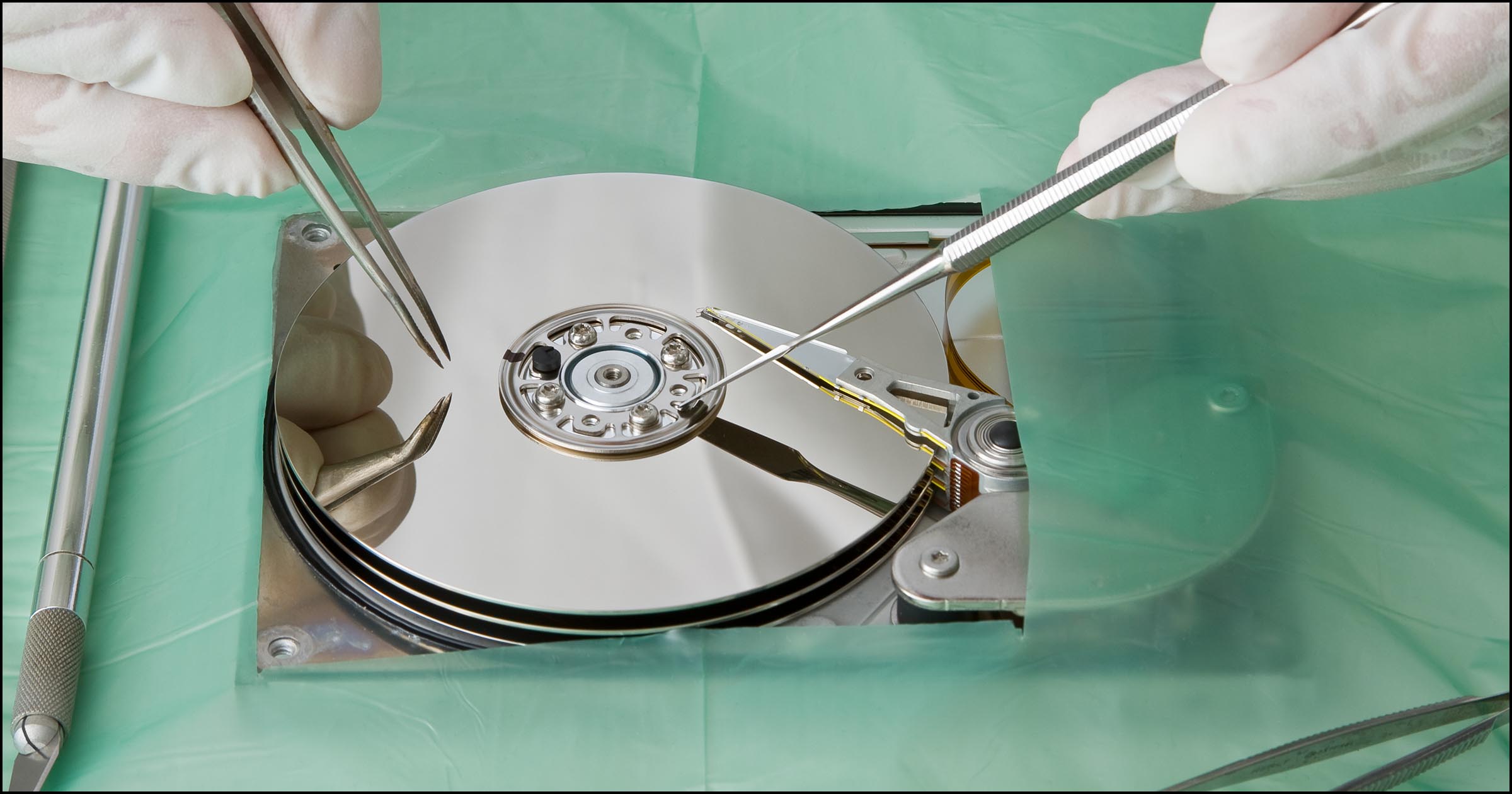
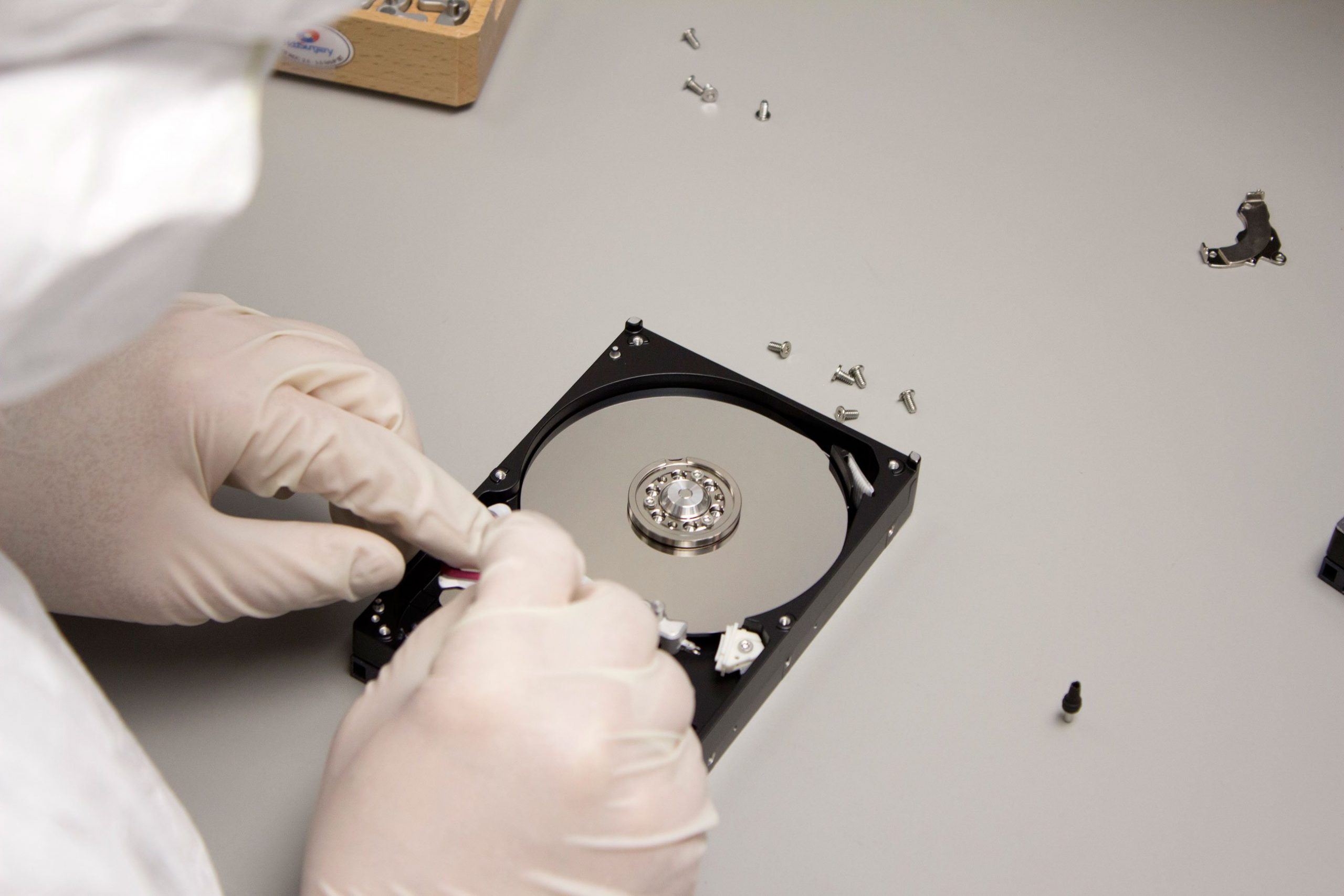
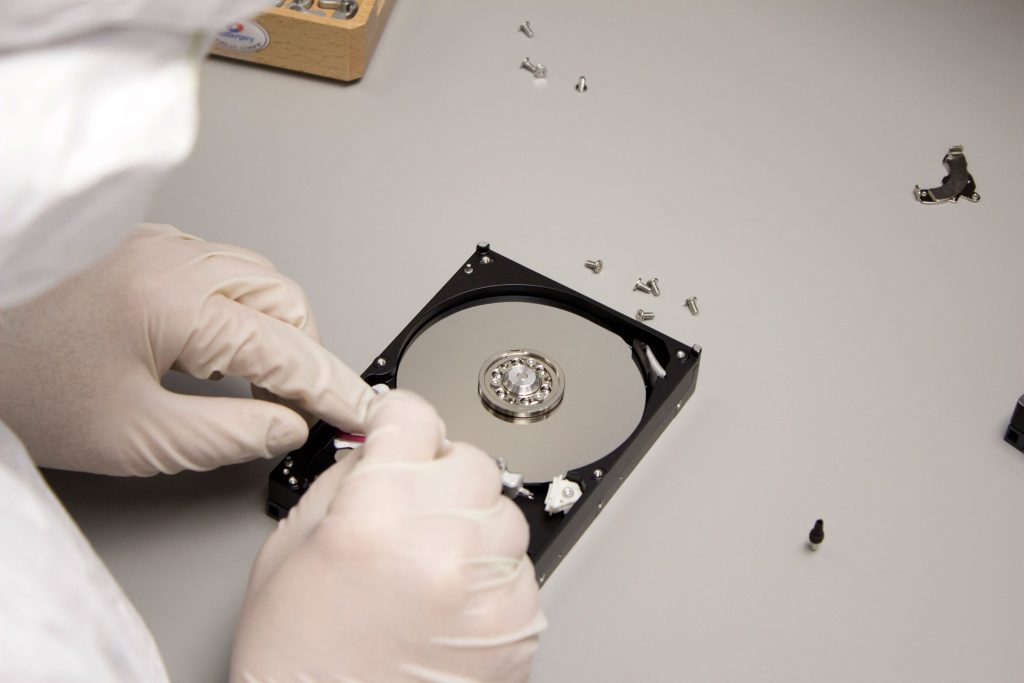
If the data recovery software fails to retrieve your files or if the SD card is physically damaged, it may be time to seek professional data recovery services. These experts have specialized tools and knowledge to recover data from severely damaged or corrupted SD cards. Though it may be more expensive, professional services provide the best chance of recovering your important files.
Tips for Preventing Future SD Card Failures
To avoid future issues with SD card data loss, consider the following best practices:
-
Regular Backups: Always back up your files to another device or cloud storage. This is the most reliable way to ensure that your data is safe even if your SD card fails.
-
Eject Properly: Always eject your SD card safely from your device to avoid corruption from improper removal.
-
Avoid Physical Damage: Handle your SD card carefully, and store it in a safe, dry place to avoid physical damage from water or extreme temperatures.
-
Use Reliable Devices: Always use quality devices and card readers when transferring files to and from your SD card.
Conclusion
Recovering data from a dead SD card is possible, but it’s important to take the right steps to avoid further complications. Start by stopping the use of the SD card, check for physical damage, and use data recovery software like MiniTool Power Data Recovery for safe and effective recovery. If software solutions don’t work, consider reaching out to professional data recovery services for assistance. By following these steps, you can increase your chances of successfully retrieving your lost files and ensure the safety of your data in the future.